GPT Image 2.5 Flare
Choose Flare for fast everyday image creation, from creator and social content to product concepts and rapid visual exploration. It is the practical starting point when iteration speed matters.
GPT Image 2.5 is OpenAI’s image generation and editing model family, focused on sharper details, reference preservation and targeted changes. Start with text or reference images in the image workspace.
Open image workspace
Choose Flare for fast everyday image creation, from creator and social content to product concepts and rapid visual exploration. It is the practical starting point when iteration speed matters.
Choose Sunburst for demanding image creation and precise edits. It is suited to campaign, brand and product visuals where the subject and small changes need closer review.
What GPT Image 2.5 can help you create and edit
Upload a reference and name the faces, objects, places or layout to keep. Describe the new scene or style separately, then compare the result with the source.
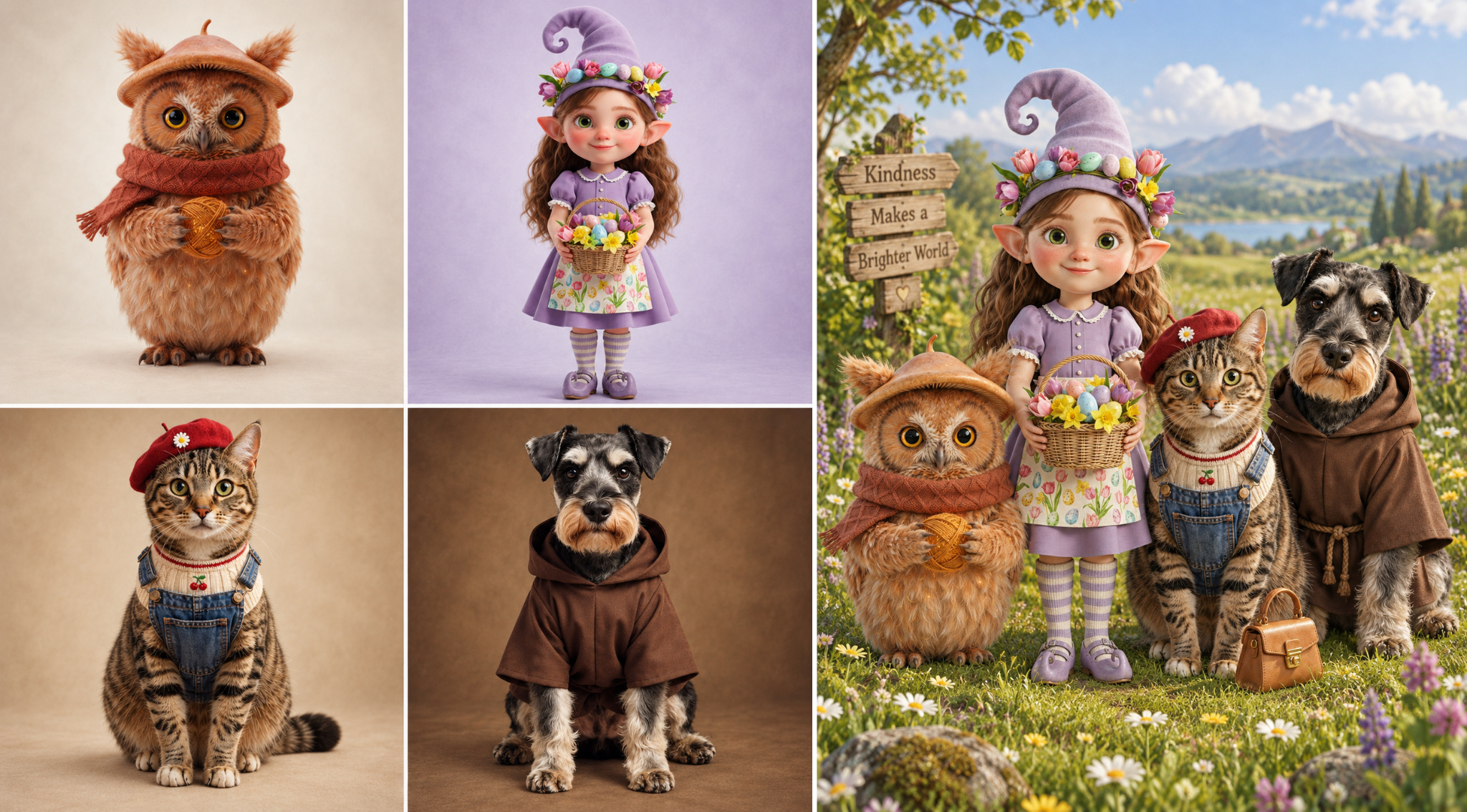
Ask to change a background, color, material, text area or individual object. State what should remain in place and inspect the surrounding details afterward.
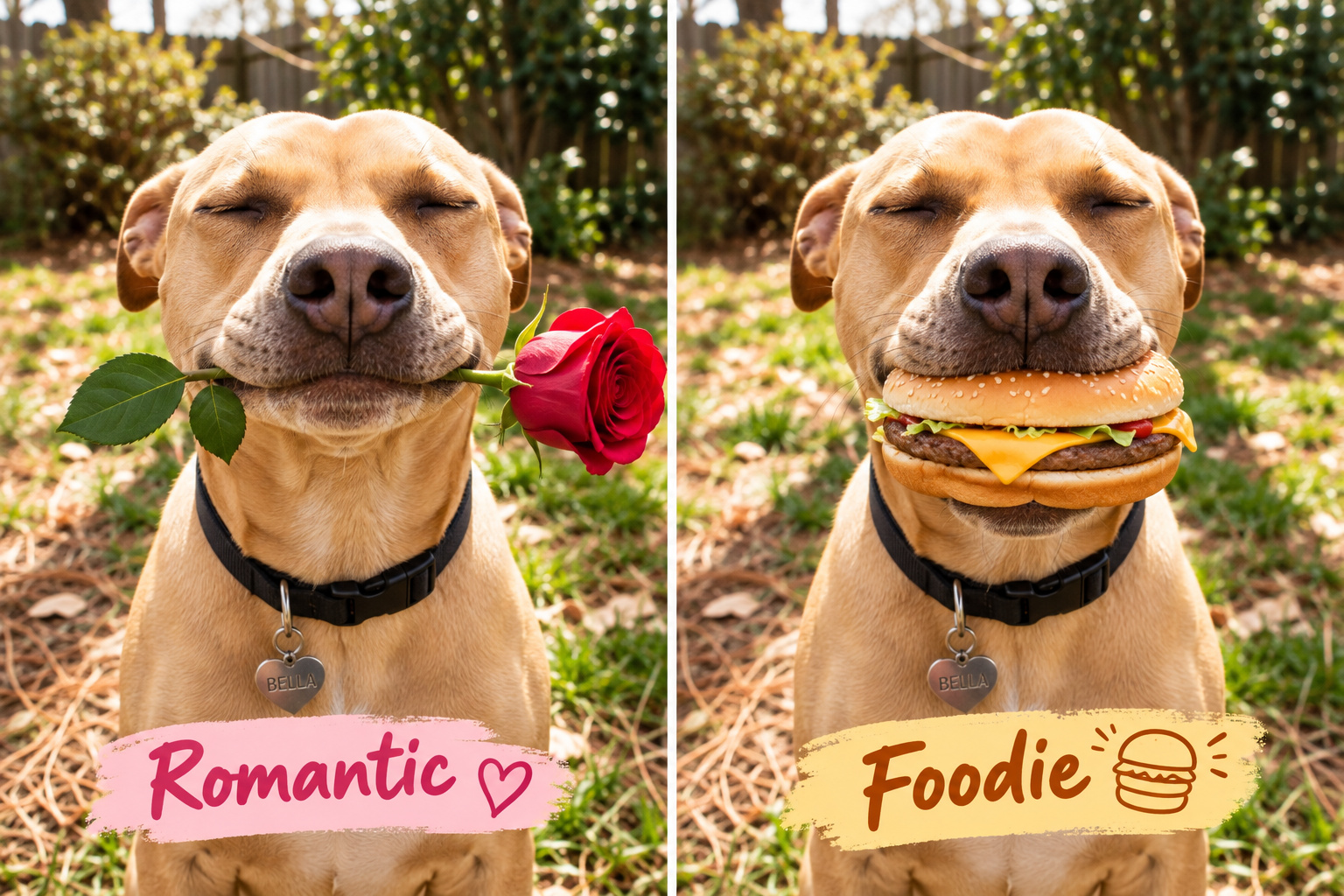
Use the latest result as a reference for the next task. Change a small set of details each time so you can compare the subject, composition and earlier decisions.
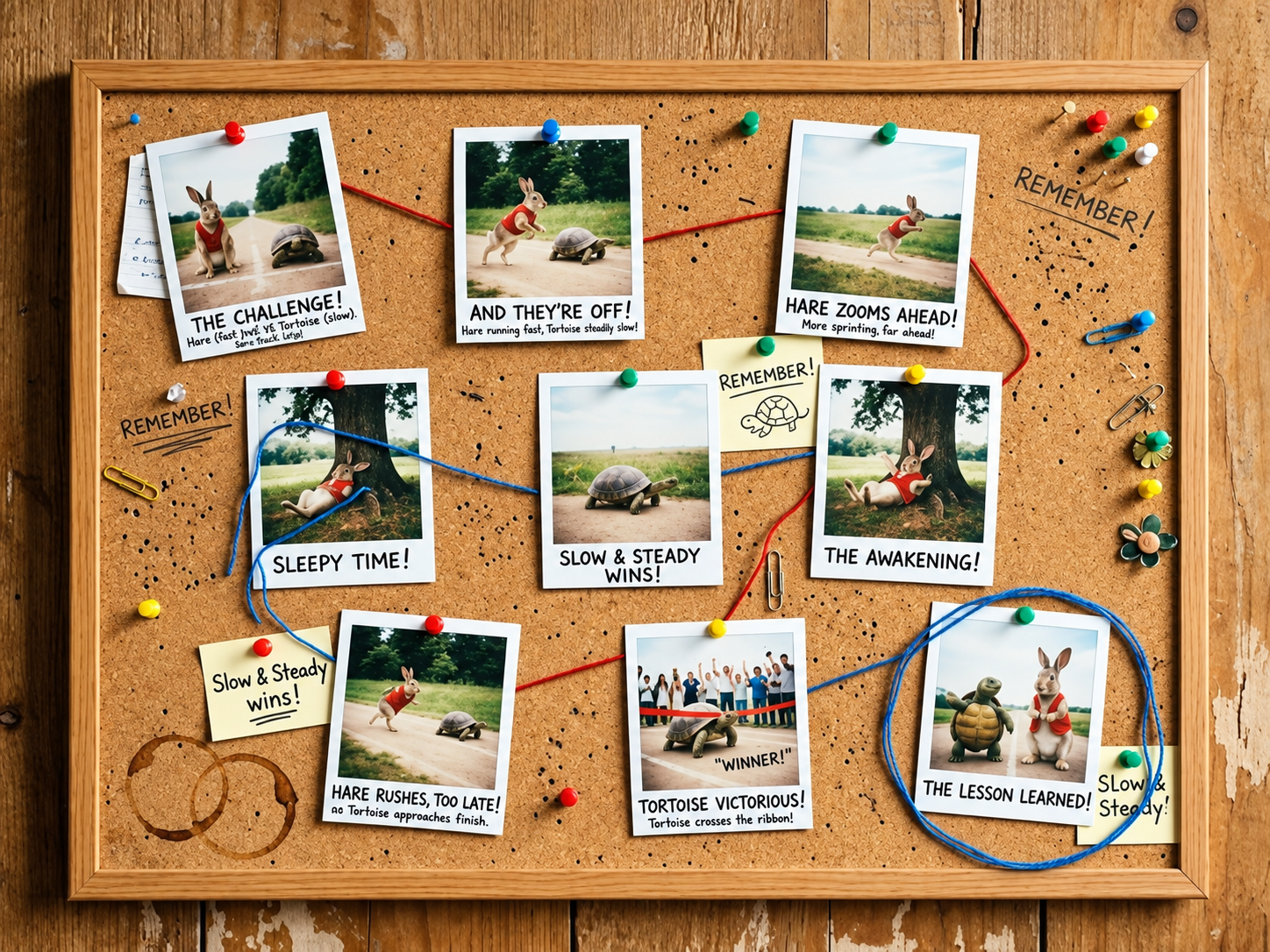
Break down multiple subjects, spatial relationships, text placement, style and transparency into clear instructions. Check the final wording and layout before use.

Upload a drawing through the regular reference-image input and explain the intended layout or object positions. This is a reference-image method, not a separate Sketch tool.

Prepare a structured brief for a poster, product scene or social graphic, including layout, copy space and style, before submitting the prompt.
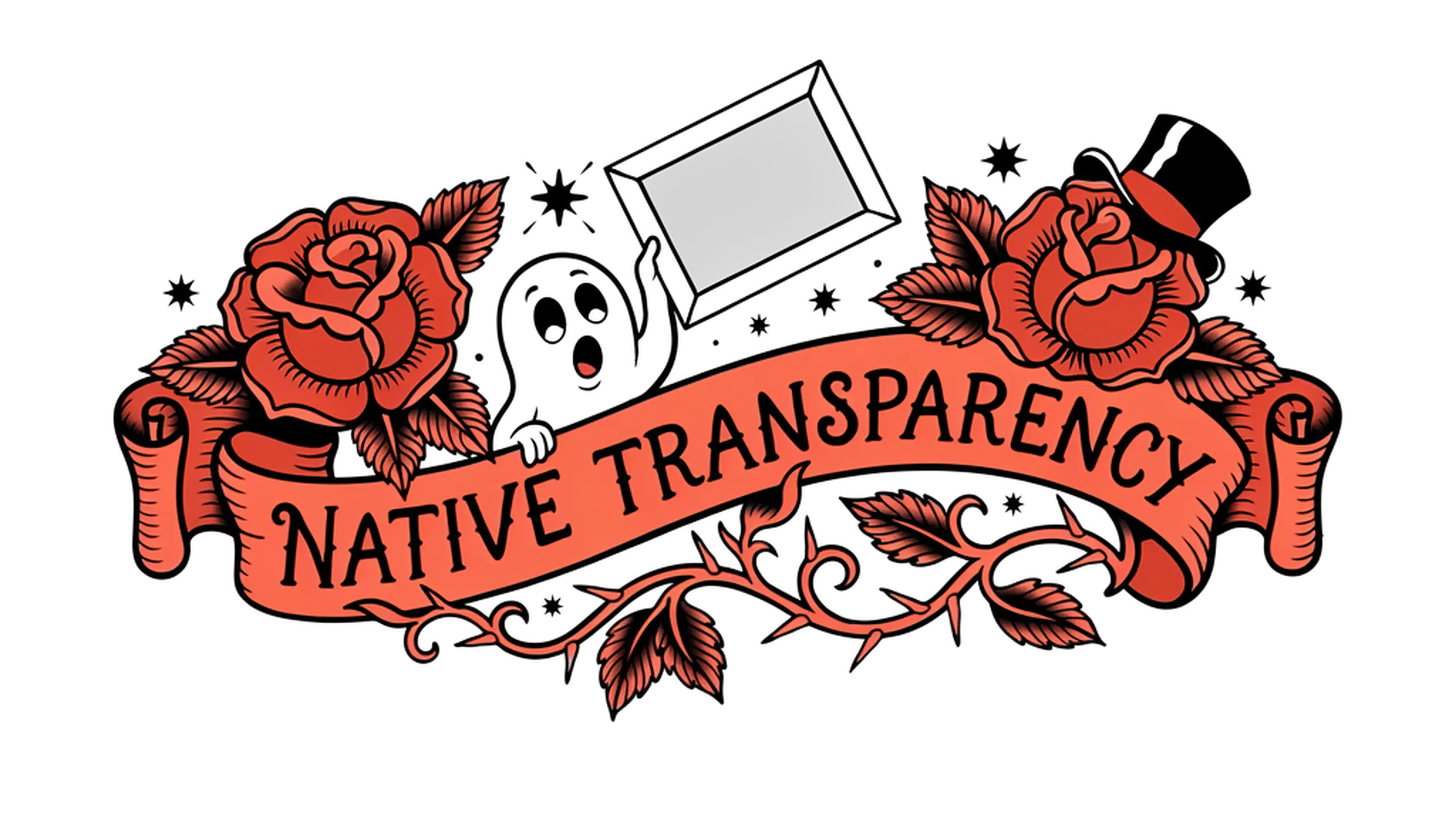
Compare image clarity, text layout, prompt control and editing consistency across the two generations.
| Feature | GPT Image 2.5 | GPT Image 2 |
|---|---|---|
| Positioning | Advanced image generation and editing with finer visual detail and edit control | Versatile image generation for everyday marketing and design |
| Image clarity | Sharper edges, product contours and detail at larger output sizes | Strong overall image quality and detailed compositions |
| Text rendering | Clearer layout, letter structure, spacing and readability | Handles standard titles and simple labels |
| Prompt precision | Follows constraints on subject count, position, material, light and layout more closely | Follows detailed prompts for general image tasks |
| Editing consistency | Better preserves approved areas, colors, subjects and composition across revisions | Supports flexible edits with visual continuity |
| Best suited to | Premium campaign visuals, text-heavy graphics, product design and iterative edits | Social content, concepts, standard image creation and everyday edits |
From prompt to finished image
Select GPT Image 2.5, then choose text to image or image to image.
Write the subject, composition and visual details. For edits, upload references and name what must stay the same.
Set the aspect ratio, resolution and background. The four narrow ratios support 1K only.
Review the credit quote, generate, and inspect the result before downloading or editing again.
Built for workflows that need clear visuals, precise text, consistent details and reliable image editing.
Design polished posters, social ads and campaign graphics with clearer layout and controlled composition.
Create polished product imagery with realistic materials, accurate labels, natural reflections and lighting.
Change selected areas while keeping backgrounds, colors and subjects consistent through multiple revisions.
Keep brand colors, layout and logo placement consistent across related visual materials.
Explore interface mockups, presentation visuals and diagrams with readable labels and clear information structure.
Prepare product, lifestyle and promotional imagery for catalogs, storefronts and banners.
GPT Image 2.5 is an OpenAI image generation and editing model family. The Seedance image workspace currently offers one GPT Image 2.5 option.
You can make images from text or edit with reference images. Common tasks include product scenes, portrait variations, social graphics and visual concepts. Check each result before use.
Flare is positioned for fast everyday creation. Sunburst is intended for image work that calls for more precise editing and careful visual review. The image workspace currently presents one GPT Image 2.5 option.
You can describe a targeted change and list the areas to preserve. Compare the output against the reference because exact preservation is not guaranteed.
You can use reference images and state which faces, objects or layout details should stay recognizable. Inspect the output against your source because preservation may vary.
Flare is positioned for lower-latency everyday creation, while Sunburst prioritizes more demanding visual tasks. Actual task time depends on current service conditions.
Yes. Image to image accepts 1–16 JPEG, PNG or WebP images, each up to 30 MB. Describe what each image contributes.
Download the latest result and upload it as a reference for the next task. Describe one set of changes at a time and check previously approved details after each result.
Most listed ratios support 2K and 4K. The 27:16, 16:27, 9:8 and 8:9 ratios are limited to 1K.
Choose the transparent background option. For 2K or 4K, describe an isolated subject without scenery or shadow, then inspect the output.
The workspace retrieves the current Seedance credit quote before submission. The server checks balance and charges one image task at a time.
Select GPT Image 2.5, choose text to image or image to image, add a prompt and optional references, review the current credit quote, then submit the image task.
GPT Image 2.5 is OpenAI’s image generation and editing model family, focused on sharper details, reference preservation and targeted changes. Start with text or reference images in the image workspace.
Open image workspace